
Learn how to set up your Free Fire HUD layout as a beginner. Discover button placement, joystick controls, fire button size, and practical layout testing tips.
Free Fire HUD Layout for Beginners: Controls Setup Guide
A comfortable HUD layout can make Free Fire easier to play, especially when you are still learning the controls. If you frequently press the wrong button, struggle to move and shoot at the same time, or find it difficult to reach important controls, adjusting your HUD layout may help.
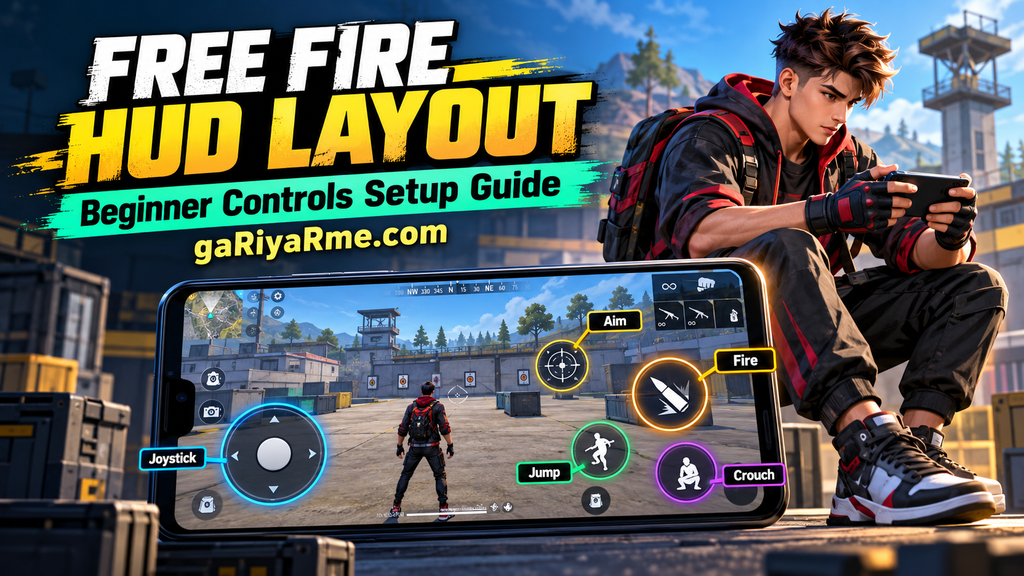
HUD stands for Heads-Up Display. In Free Fire, the HUD includes the on-screen controls you use to move, aim, shoot, jump, crouch, reload, and perform other actions.
There is no single HUD layout that works best for every player. Your screen size, hand position, number of fingers used, and personal preferences all affect which layout feels comfortable.
In this beginner-friendly guide, you will learn how to customise your Free Fire HUD layout, position important buttons, and test your setup without making unnecessary changes.
What Is a HUD Layout in Free Fire?
A HUD layout is the arrangement of on-screen buttons and controls during gameplay.
It determines where important controls appear and how easily you can reach them while moving, aiming, and fighting.
A well-organised HUD layout can help you:
- Reach important buttons more comfortably.
- Move and aim without unnecessary finger movement.
- Reduce accidental button presses.
- Maintain better control during close-range fights.
- Build consistent gameplay habits.
However, changing your HUD does not automatically improve your aim. You still need to practise using the layout you choose.
How to Change Your Free Fire HUD Layout
Follow these general steps to customise your controls:
- Open Free Fire on your device.
- Go to the Settings menu.
- Find the Controls or HUD-related settings section.
- Open the available custom HUD or layout editor.
- Select a button you want to adjust.
- Move or resize the control using the options available in your game.
- Save or confirm your layout if required.
- Enter a practice environment and test the new arrangement.
The exact menu names and available options may vary between game versions. Follow the instructions displayed in your installed version.
Best Free Fire HUD Layout Tips for Beginners
Instead of copying another player’s complete layout, start with a simple arrangement that suits your hands and device.
1. Place the Movement Joystick Comfortably
The movement joystick is one of the most frequently used controls. You need to reach it comfortably while moving in different directions.
When choosing its position:
- Keep it within a natural thumb movement area.
- Avoid placing it where your hand frequently slips.
- Make sure you can move diagonally without discomfort.
- Test whether you can move while keeping your view under control.
If you frequently lose movement control during fights, check whether your joystick position or size needs adjustment.
2. Find a Comfortable Fire Button Position
The fire button is essential for shooting. Its placement should allow you to press it reliably without interrupting other important actions.
Consider these tips:
- Place the button where your preferred finger can reach it naturally.
- Make sure it is easy to identify during combat.
- Adjust its size if you frequently miss the button or press it accidentally.
- Test shooting while moving, turning, and changing position.
Some players prefer using a thumb, while others use an additional finger for shooting. Choose a layout that matches your preferred control style.
3. Adjust the Aim and Scope Controls
Aim and scope controls should be accessible without forcing your hand into an uncomfortable position.
Place them where you can activate them while keeping your movement and shooting controls accessible.
After changing their positions, practise aiming at stationary targets and tracking moving targets. If you struggle to reach a control quickly, adjust its placement gradually.
4. Keep Jump, Crouch, and Other Action Buttons Accessible
Jumping and crouching can be useful in different combat situations. However, buttons that are too close together may lead to accidental presses.
To organise these controls:
- Keep frequently used actions within comfortable reach.
- Leave enough space between buttons to reduce accidental taps.
- Avoid placing important controls directly under areas where your fingers naturally rest.
- Test each action separately before combining movements.
You do not need to make every button equally large. Give priority to the controls you use most often.
5. Avoid Overcrowding the Screen
Too many large buttons can cover important parts of the gameplay area and make it harder to see enemies.
Keep your layout organised by:
- Using practical button sizes.
- Avoiding unnecessary overlap.
- Keeping important controls easy to identify.
- Preserving enough visible space to observe your surroundings.
A clean layout should help you use your controls without distracting you from the game.
Two-Finger vs Multi-Finger HUD Layout
The number of fingers you use affects how you arrange your controls.
Two-Finger Layout
A two-finger layout generally uses both thumbs for movement, aiming, shooting, and other actions.
It can be a good starting point for beginners because it keeps the control method relatively simple.
Advantages include:
- Easier initial learning.
- Fewer simultaneous finger movements to coordinate.
- A comfortable starting point for casual players.
A possible limitation is that some actions may compete for the same thumb, especially during fast fights.
Multi-Finger Layout
A multi-finger layout uses additional fingers to operate selected controls.
Some players use an index finger for shooting or other actions while their thumbs handle movement and camera control.
Potential benefits include:
- More flexibility when performing multiple actions.
- Easier access to selected controls during combat.
- Greater freedom to customise button placement.
However, multi-finger controls require practice and may feel uncomfortable at first. You do not need to switch to them simply because another player uses them.
Beginner recommendation: Start with a comfortable two-finger layout if you are new to mobile gaming. Consider additional fingers only if you want to experiment with a different control style.
How to Find the Right HUD Layout for Your Phone
A layout that feels comfortable on one device may not work as well on another.
Step 1: Start with a Simple Layout
Begin with the default or current layout and identify the controls that feel difficult to reach.
Avoid changing every button at once.
Step 2: Identify Your Main Problem
Ask yourself:
- Do I frequently miss the fire button?
- Is the joystick uncomfortable to reach?
- Do I accidentally press jump or crouch?
- Is it difficult to aim while shooting?
- Do the buttons cover too much of the screen?
Choose the control that causes the most difficulty and adjust it first.
Step 3: Make Small Changes
Move or resize one or two buttons at a time.
This makes it easier to identify which changes improve your control and which ones make it worse.
Step 4: Practise in a Safe Environment
Use the Training Ground or another suitable practice mode to test your controls.
Try moving, aiming, shooting, jumping, and crouching separately before combining them.
Step 5: Keep What Works
Use the updated layout across several practice sessions before deciding whether to change it again.
Frequent layout changes can make it harder to develop consistent finger movements.
Common Free Fire HUD Layout Mistakes
Avoid these mistakes when customising your controls:
- Copying another player’s HUD without considering your own hands or screen.
- Making every button unnecessarily large.
- Placing important controls too close together.
- Moving too many buttons at the same time.
- Switching to a multi-finger layout before learning the basics.
- Ignoring accidental button presses.
- Changing the layout repeatedly without testing it.
- Assuming a particular HUD layout guarantees more headshots or victories.
Your goal should be a comfortable, reliable setup rather than an exact copy of a professional player’s screen.
HUD Layout vs Sensitivity Settings
HUD layout and sensitivity settings serve different purposes.
HUD layout controls where on-screen buttons are positioned and, where supported, their size and visibility.
Sensitivity settings control how your view or aim responds to finger movement.
If you frequently press the wrong button, review your HUD layout first. If your crosshair moves too quickly or too slowly, review your sensitivity settings.
Both can be adjusted independently, so you do not need to change them at the same time.
The best Free Fire HUD layout for beginners is one that feels comfortable, keeps important controls accessible, and allows you to move and shoot without unnecessary difficulty.
Start with a simple layout, prioritise the joystick and fire button, organise your action controls, and test every change in a practice environment.
You do not need to copy a professional player’s setup or switch to a complicated multi-finger layout immediately. Focus on comfort and consistency, and adjust your controls as your skills develop.
FAQ
1. What is the best Free Fire HUD layout for beginners?
A simple layout with a comfortable joystick position, an accessible fire button, and clearly separated action buttons is a good starting point. The best arrangement depends on your device and playing style.
2. Is a two-finger HUD layout good for beginners?
Yes. A two-finger layout is a practical starting point because it is relatively simple to learn. You can explore additional fingers later if you want a different control style.
3. Where should I place the fire button in Free Fire?
Place it where your preferred finger can reach it comfortably and reliably. Test the position while moving and aiming before settling on a final layout.
4. Does a better HUD layout improve headshots?
A comfortable HUD may make it easier to operate your controls consistently, but it does not guarantee headshots. Aim practice, sensitivity, crosshair placement, and weapon control also matter.
5. How often should I change my HUD layout?
Change it when you identify a specific problem. Test small adjustments over several practice sessions instead of repeatedly changing the entire layout.
6. Should beginners use a three-finger or four-finger layout?
Not necessarily. Begin with a layout you can control comfortably. Additional fingers are optional and require practice.
7. What is the difference between HUD layout and sensitivity?
HUD layout determines where your controls appear. Sensitivity determines how your aim or view responds to finger movement. They solve different problems and can be adjusted separately.
Leave a Reply