Learn how to make AI gaming thumbnails for YouTube with free tools, ready-to-use prompts, design tips, and a simple step-by-step workflow.
How to Make AI Gaming Thumbnails for YouTube (Free Tools & Prompts)
A great gaming thumbnail can help viewers understand what makes your video interesting before they click. Whether you upload Free Fire gameplay, battle royale highlights, funny gaming moments, tutorials, or challenge videos, your thumbnail should communicate the main idea quickly.
An AI gaming thumbnail maker can help you explore visual ideas, create original backgrounds, generate dramatic gaming scenes, and build thumbnail concepts without starting every design from scratch.
In this guide, you will learn how to make AI gaming thumbnails for YouTube, which tools to try, how to write effective prompts, and how to improve your designs before publishing.
What Is an AI Gaming Thumbnail Maker?
An AI gaming thumbnail maker is a tool or combination of tools that uses artificial intelligence to help create thumbnail images for gaming videos.
Depending on the tool, you may be able to generate images from text prompts, edit existing pictures, remove backgrounds, create visual effects, or arrange images and text in a thumbnail layout.
For example, you could use AI to create a dramatic battle royale scene, generate a futuristic gaming background, or produce an original character illustration. You can then add your own gameplay screenshot, headline, and other design elements using an image editor.
AI does not automatically make every thumbnail effective. Your final design still needs to match the video, remain easy to understand, and give viewers a clear reason to watch.
Best AI Tools for Gaming Thumbnails
Different tools are useful for different stages of thumbnail creation. You may need an AI image generator for artwork and a separate design editor for text and layout.
1. Canva
Canva is useful for arranging thumbnail elements, adding text, resizing images, and working with ready-made design layouts. Its AI and image-generation features can also help with creative ideas, depending on the features available in your plan and region.
Best for: Beginners who want to combine AI-generated visuals with text, screenshots, and design elements.
Website: https://www.canva.com/
2. Adobe Express
Adobe Express provides graphic-design tools, templates, text styling, and image-editing features. Its free plan includes a selection of design resources, while some premium assets and features require a paid plan.
Best for: Creators who want to create and edit thumbnails in a straightforward design workspace.
Website: https://www.adobe.com/express/
3. Leonardo AI
Leonardo AI can generate images from text prompts and help creators explore different visual styles. It is useful for developing original gaming-inspired artwork, dramatic environments, and character concepts.
Check the current plan, usage limits, visibility settings, and commercial-use terms before using generated images in a monetized channel. Free-plan and paid-plan rights may differ.
Best for: Creating original gaming artwork and cinematic visual concepts.
Website: https://leonardo.ai/
4. YouTube Studio and Ask Studio
YouTube provides thumbnail-related features in its creator workflow. Ask Studio can suggest thumbnail concepts based on a video’s content and can help creators refine ideas through prompts. Availability of specific features may vary.
Best for: Exploring thumbnail ideas connected to an actual YouTube video and refining the design direction.
Website: https://studio.youtube.com/
Which Tool Should You Choose?
| Your Goal | Tool to Try |
|---|---|
| Arrange text, screenshots, and visual elements | Canva |
| Create and edit a graphic design | Adobe Express |
| Generate original gaming artwork | Leonardo AI |
| Explore thumbnail suggestions for your video | YouTube Studio / Ask Studio |
You do not need to pay for every tool. Start with the features available to you, test the results, and upgrade only if a paid feature solves a specific problem in your workflow.
How to Make AI Gaming Thumbnails Step by Step
Follow this workflow to turn a gaming video idea into a thumbnail concept.
Step 1: Identify the Main Idea of Your Video
Before opening an AI tool, decide what the viewer should understand from the thumbnail.
For example:
- A Free Fire headshot tutorial should communicate precision or improved aim.
- A battle royale victory video could highlight the final fight or a dramatic win.
- A funny gameplay video should communicate a surprising or humorous moment.
- A gaming challenge video should show the challenge or its most interesting consequence.
Choose one central idea. Trying to show too many moments in a single thumbnail can make it confusing.
Step 2: Choose the Main Visual
Decide what should attract the viewer’s attention first.
Possible visual elements include:
- Your own gameplay screenshot
- An original gaming-inspired character
- A dramatic background
- A vehicle, weapon, or other game element you are allowed to use
- A visual representation of the video’s main challenge
If you want to use your own gameplay footage, take a clean screenshot from the relevant moment. You can then use AI-generated artwork as a supporting element rather than replacing the actual gameplay context.
Step 3: Write a Specific AI Prompt
A useful prompt describes the subject, composition, lighting, mood, background, and visual style.
Instead of writing “make a cool gaming thumbnail,” explain what the scene should contain and where the main subject should appear.
For example, you could request an original battle royale-inspired character on the right, a dramatic arena in the background, and open space on the left for a headline.
The more clearly you describe the composition, the easier it is to evaluate whether the generated image will work as a thumbnail.
Step 4: Generate and Compare Several Concepts
Create a few variations if your tool allows it. Compare them based on:
- How quickly the main subject stands out
- Whether the image matches the video
- How clearly the scene reads at a small size
- Whether the composition leaves room for text
- Whether the image contains unwanted objects or visual errors
Do not choose a design only because it looks impressive at full size. A simpler image may work better when viewers see it on a phone.
Step 5: Edit the Image in a Design Tool
AI-generated artwork is often only the starting point.
Use a design editor to add your own headline, adjust contrast, crop the image, remove distracting details, and combine the artwork with a relevant gameplay screenshot.
Keep the headline short. A few meaningful words are usually easier to read than a full sentence.
Check that the text contrasts with the background and that the main subject is not hidden behind it.
Step 6: Check the Thumbnail Before Uploading
View the finished image at a smaller size. Ask yourself:
- Can I identify the main subject immediately?
- Is the text readable?
- Does the design accurately represent the video?
- Are there any strange AI-generated details?
- Does the thumbnail look different enough from my other uploads?
YouTube’s official guidance recommends high-resolution custom thumbnails. For standard videos, YouTube currently recommends a 16:9 image at 3840 × 2160 pixels, with a minimum width of 640 pixels. Check the latest YouTube thumbnail guidelines before exporting.
Step 7: Upload and Learn From the Results
Upload the thumbnail through YouTube Studio and check how viewers respond over time.
Look at click-through rate alongside impressions, traffic sources, and average view duration. A thumbnail may attract clicks but still disappoint viewers if it promises something the video does not deliver.
When eligible, use YouTube’s available thumbnail testing features to compare options. Treat each upload as an opportunity to learn which designs fit your audience and content.
5 AI Gaming Thumbnail Prompts You Can Copy
The following prompts are starting points for original gaming-inspired artwork. Adapt them to the actual video you are publishing.
Free Fire Male Character AI Prompts – Transform Your Photos into In-Game Heroes
Prompt 1: Battle Royale Gameplay
Use for: Battle royale highlights, intense fights, and survival gameplay.
“Create a cinematic gaming thumbnail background inspired by a high-stakes battle royale match. Show an original armored game character positioned on the right side, a dramatic battlefield in the distance, dynamic lighting, strong contrast, atmospheric smoke, vivid but controlled colors, and a clear focal point. Leave the left side relatively uncluttered for headline text. Wide 16:9 composition, polished digital game art, crisp details. No text, no watermark, no copied game logo.”
Prompt 2: Headshot and Aim Tutorial
Use for: Aim improvement, accuracy tutorials, and shooting-game tips.
“Create an original competitive gaming thumbnail illustration focused on precision aiming. Show a determined fictional esports-style character, a futuristic training arena, subtle target graphics, dramatic rim lighting, and a clear separation between the subject and background. Use a bold composition with open space at the top-left for a short title. Wide 16:9 frame, sharp subject, clean visual hierarchy. No readable text, no watermark, no real game logo.”
Prompt 3: Funny Gaming Moments
Use for: Funny gameplay, unexpected fails, and entertaining reactions.
“Create a colorful gaming thumbnail scene showing an original cartoon-style gamer character reacting with exaggerated surprise to a chaotic but harmless in-game situation. Use expressive facial features, dynamic poses, bright lighting, a simple background, and a clear main subject. Leave negative space on one side for a short headline. Wide 16:9 composition, playful digital illustration, readable at small sizes. No text, no watermark.”
Prompt 4: Epic Final Battle
Use for: Final-circle fights, clutch moments, and last-player-standing videos.
“Create a dramatic original battle royale-inspired scene for a gaming video thumbnail. Feature one heroic fictional character in the foreground and a distant opponent silhouette across a stormy arena. Add cinematic lighting, atmospheric depth, energetic composition, and a strong focal point. Keep the background simple enough for mobile viewing and leave space for a short headline. Wide 16:9 digital game artwork, no text, no watermark, no copied characters or logos.”
Prompt 5: Gaming Challenge Video
Use for: Difficult challenges, unusual loadouts, and self-imposed gameplay rules.
“Create an energetic gaming thumbnail background for a difficult gameplay challenge. Show an original fictional gamer character facing an imposing obstacle in a colorful virtual arena. Use dramatic perspective, expressive body language, strong contrast, and a clear visual separation between the character and the challenge. Leave clean space on the left for a short title. Wide 16:9 format, polished game concept art, no text, no watermark.”
Important: AI image generators can produce distorted hands, inconsistent objects, and incorrect details. Review every result and correct visible errors before publishing. Add readable headline text in your editor rather than relying on the image generator to spell it correctly.
Tips for Better AI Gaming Thumbnails
Keep One Clear Focal Point
Your thumbnail should have one dominant subject or moment. Avoid filling every empty space with characters, weapons, effects, and text.
Use Short, Readable Text
A short phrase can communicate the video’s main idea without overwhelming the artwork. Check readability at mobile size instead of judging the design only on a large monitor.
Match the Thumbnail to the Actual Video
Do not show a victory, rare item, character, or event that does not appear in the video. A relevant thumbnail sets accurate expectations and helps build viewer trust.
Use Your Own Gameplay Screenshots
Combining a real screenshot with AI-generated backgrounds or supporting artwork can make your thumbnail more specific to your video. It also helps distinguish your content from generic AI imagery.
Develop a Consistent Channel Style
Choose a small set of recurring colors, fonts, and layout principles. Consistency can help viewers recognize your channel while allowing each thumbnail to represent a different video.
Check Image and Commercial-Use Rights
Read the relevant tool’s terms before using generated artwork in monetized content. Be careful with copyrighted characters, game logos, third-party artwork, and assets you do not have permission to use. An AI-generated image is not automatically free of intellectual-property restrictions.
Common Mistakes to Avoid
- Using vague prompts: Specify the subject, setting, lighting, and composition.
- Adding too many effects: Excessive glow, smoke, and particles can hide the main subject.
- Letting AI write the headline: Generated lettering may be misspelled or unreadable.
- Using misleading imagery: The thumbnail should accurately represent the video.
- Ignoring mobile readability: Small details that look impressive on a desktop can disappear on a phone.
- Copying another creator’s design: Learn from effective layouts, but develop original artwork and a recognizable style.
- Assuming every tool is free: Check current usage limits, paid features, and export restrictions.
- Publishing without reviewing the image: Inspect faces, hands, weapons, text, logos, and other details before upload.
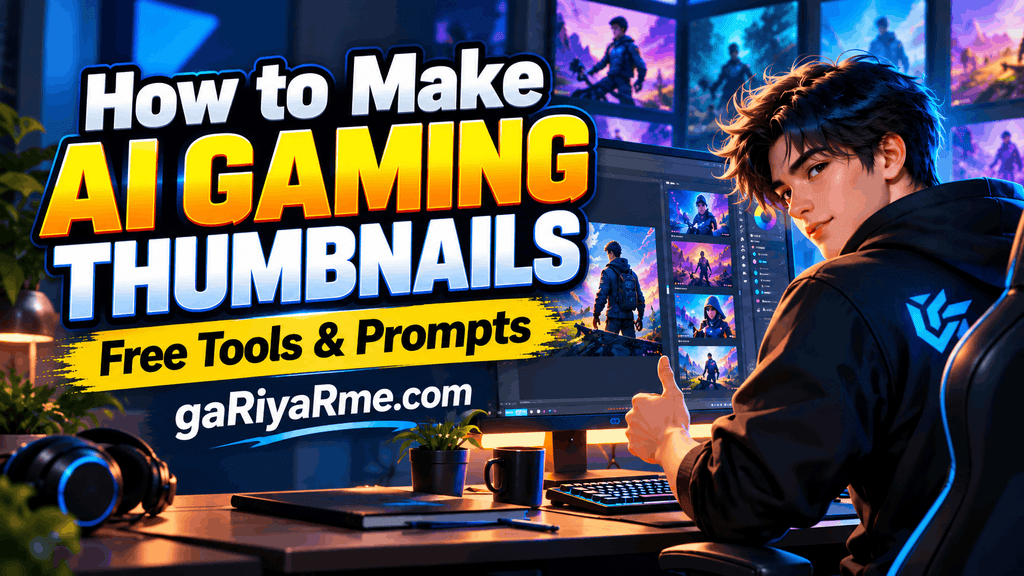
An AI gaming thumbnail maker can help gaming creators develop visual ideas faster and experiment with different designs. The strongest workflow combines specific prompts, careful editing, relevant gameplay imagery, and a final review at mobile size.
Start with one upcoming video, create a few thumbnail concepts, and choose the version that communicates the video’s real value most clearly. Then use your YouTube analytics to guide future improvements.
Frequently Asked Questions
1. What is the best AI gaming thumbnail maker?
The best option depends on your needs. Canva and Adobe Express are useful for design and editing, while Leonardo AI can help generate original gaming artwork. YouTube Studio also offers thumbnail-related features. Compare the available features and current plan limits before choosing.
2. Can I make gaming thumbnails with AI for free?
Yes, you can start with tools that offer free design or image-generation features. However, generation limits, premium assets, export options, and usage rights vary by service and may change.
3. What should I include in an AI gaming thumbnail prompt?
Describe the main subject, scene, visual style, lighting, composition, background, and space for headline text. Specify a wide 16:9 layout for a standard YouTube video thumbnail, then adjust the prompt based on the result.
4. Can I use AI-generated thumbnails on a monetized YouTube channel?
Potentially, yes, but you must follow the AI tool’s current terms and applicable intellectual-property rules. Check commercial-use permissions, avoid unauthorized copyrighted assets, and ensure the thumbnail follows YouTube’s policies.
5. Should I add text to an AI-generated gaming thumbnail?
Text can help communicate the video’s main idea, but it is not always necessary. If you add it, keep it short, readable, and relevant. It is generally easier to create reliable text in a design editor than inside an AI-generated image.
6. What size should a YouTube gaming thumbnail be?
YouTube currently recommends a 16:9 thumbnail at 3840 × 2160 pixels for standard videos, with a minimum width of 640 pixels. Check the official requirements before exporting because platform specifications can change.
7. Can AI make thumbnails for Free Fire videos?
Yes. You can use AI to create original gaming-inspired backgrounds, character concepts, and visual effects for Free Fire-related videos. For the most relevant result, combine the artwork with your own gameplay screenshots and ensure you have the necessary rights to any game assets you use.
8. Will AI-generated thumbnails automatically increase views?
No. AI can make the creation process faster, but it cannot guarantee more views. Results depend on the video’s topic, audience, title, thumbnail clarity, viewer expectations, and overall content quality.
Leave a Reply