
Learn Free Fire sensitivity settings for beginners, including General, Red Dot, scope settings, aim control, and tips to find the right sensitivity for your device.
Free Fire Sensitivity Settings for Beginners
Finding the right Free Fire sensitivity settings can help you aim more comfortably, track moving enemies, and control your crosshair during fights. If your aim moves too slowly or repeatedly passes over an enemy’s head, adjusting your sensitivity may improve your control.
However, there is no single sensitivity setup that works perfectly for every player. Your device, touch response, control layout, and playing style all affect how the settings feel.
In this guide, you will learn what each sensitivity option does, which starting values you can test, and how to adjust your settings for more consistent aiming.
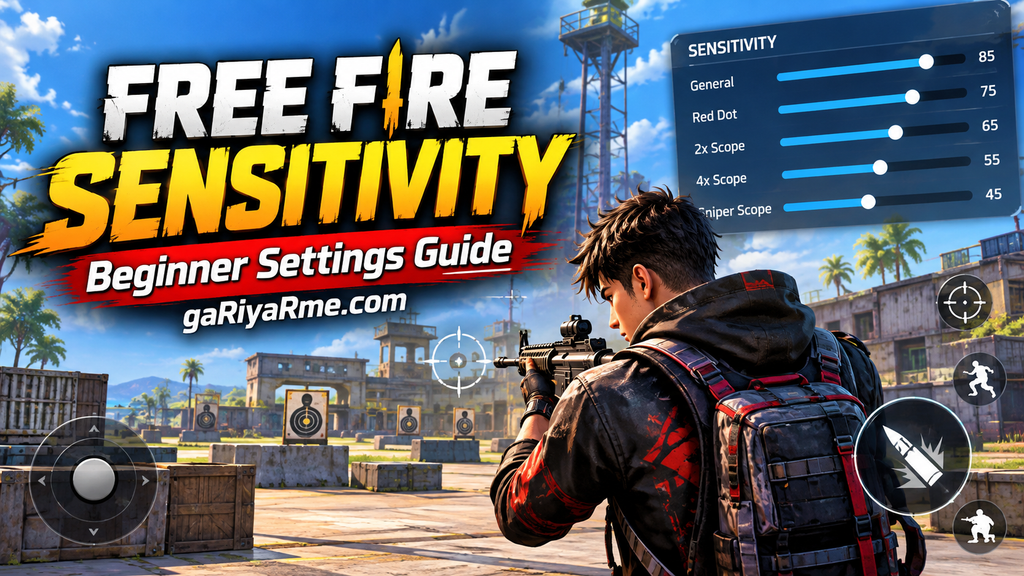
Best Free Fire Sensitivity Settings for Beginners
The following values are a suggested starting configuration for players whose game displays a 0–200 sensitivity scale. They are not official Garena recommendations or guaranteed headshot settings.
| Sensitivity Setting | Suggested Starting Value |
|---|---|
| General | 180 |
| Red Dot | 175 |
| 2x Scope | 155 |
| 4x Scope | 135 |
| Sniper Scope | 85 |
| Free Look | 120 |
Important: Check the sensitivity scale displayed in your game before using these values. If your version displays a 0–100 scale, do not enter these numbers directly.
These settings provide a starting point for testing. If your aim feels too fast, reduce the relevant value. If it feels too slow, increase it gradually.
What Are Sensitivity Settings in Free Fire?
Sensitivity determines how quickly your camera or aim responds when you move your finger across the screen.
Higher sensitivity generally allows faster movement with a shorter swipe. Lower sensitivity produces slower movement, which may make precise adjustments easier for some players.
The objective is to find a balance between speed and control. You should be able to turn toward enemies quickly while keeping your crosshair under control.
What Does Each Sensitivity Setting Do?
1. General Sensitivity
General sensitivity affects ordinary camera and aiming movements. It is a useful setting to adjust when your crosshair feels too slow or too fast during normal gameplay.
- Increase it slightly if you struggle to turn toward nearby enemies.
- Reduce it if your crosshair repeatedly moves past the target.
- Test it during ordinary aiming before changing other settings.
2. Red Dot Sensitivity
Red Dot sensitivity affects aiming while using the Red Dot sight.
If you frequently miss moving enemies or struggle to keep your crosshair on a target, practise tracking with the Red Dot sight and adjust this setting gradually.
3. 2x Scope Sensitivity
The 2x Scope setting affects aiming movement while using the 2x scope.
If your crosshair moves too far when following an enemy, try a small reduction. If tracking feels too slow, test a small increase.
4. 4x Scope Sensitivity
The 4x Scope setting affects aiming through the 4x scope.
At longer distances, even small aiming movements can affect accuracy. If your crosshair feels unstable, reduce the sensitivity slightly and test it against distant targets.
5. Sniper Scope Sensitivity
Sniper Scope sensitivity affects aiming movement when using the relevant sniper scope.
Precision is important when making small corrections. Begin with a comfortable value and practise controlled movements instead of making large swipes.
6. Free Look Sensitivity
Free Look sensitivity controls how quickly you can look around without changing your main aiming direction.
Choose a setting that allows you to check your surroundings comfortably. Remember that Free Look is primarily about camera movement and awareness rather than directly improving shooting accuracy.
How to Change Sensitivity Settings in Free Fire
Follow these general steps:
- Open Free Fire on your device.
- Go to the Settings menu.
- Find the Sensitivity section.
- Check the available sliders and their displayed scale.
- Adjust one setting at a time.
- Enter the Training Ground and test your aim.
- Keep the changes only if they improve your control.
The exact menu layout may vary between game versions. Follow the labels shown in your installed version.
How to Find the Best Sensitivity for Your Phone
Copying another player’s settings does not guarantee the same results on your device. Instead, use the following testing method.
Step 1: Start with the Suggested Values
Use the starting configuration above only if your game displays a 0–200 scale. If you already have comfortable settings, keep them as your baseline.
Step 2: Test Your Aim
Enter the Training Ground and aim at stationary targets. Then practise tracking moving targets.
Observe whether your crosshair moves smoothly, stops short, or repeatedly overshoots the target.
Step 3: Identify the Problem
If ordinary aiming feels too slow, test General sensitivity first.
If the problem occurs mainly while using a particular scope, adjust that scope’s sensitivity instead.
Step 4: Make Small Adjustments
On a 0–200 scale, try changing the relevant setting by around 3–5 points at a time. Test the result before making another adjustment.
This is a practical testing approach, not a mandatory rule.
Step 5: Keep Your Settings Consistent
Use your adjusted settings for several practice sessions before deciding whether they work. Frequent, large changes make it harder to develop consistent finger movements.
Free Fire Sensitivity Tips for Different Playing Styles
For Beginners
Choose settings that feel predictable and easy to control. Focus on keeping your crosshair on the target before attempting advanced headshot techniques.
For Close-Range Fights
Practise quick target transitions and tracking. If your aim feels too slow during close encounters, test a small increase in General or Red Dot sensitivity.
For Long-Range Fights
Prioritise precise aiming and controlled scope movement. If your crosshair moves too far with small swipes, try lowering the relevant scope sensitivity.
For Drag Headshots
Practise short, controlled upward swipes.
If your crosshair consistently stops below the intended target, test a small increase in the relevant sensitivity. If it repeatedly moves above the target, test a decrease.
Sensitivity alone does not guarantee headshots. Crosshair placement, timing, weapon behaviour, and practice all matter.
Common Free Fire Sensitivity Mistakes
Avoid these common mistakes when adjusting your settings:
- Copying another player’s values without testing them.
- Changing all sensitivity sliders at the same time.
- Assuming maximum sensitivity is always better.
- Using the same approach for close-range and scoped aiming.
- Changing settings after every unsuccessful fight.
- Ignoring touch response or unstable frame rates.
- Expecting sensitivity changes to fix every aiming problem.
A consistent setup that you understand is usually more useful than a configuration you keep changing.
Other Factors That Affect Your Aim
Sensitivity is only one part of aiming performance.
Control layout: Make sure your aiming and firing controls are comfortable to reach.
Device performance: Unstable frame rates or delayed touch response can make aiming feel inconsistent.
Crosshair placement: Keep your crosshair near likely enemy positions to reduce unnecessary aiming movements.
Practice: Repeating the same aiming drills helps you develop more consistent finger movements.
Weapon choice: Different weapons have different recoil and firing characteristics. Practise with the weapons you use most often.
The best Free Fire sensitivity settings for beginners are the settings that let you aim comfortably and consistently. Start with reasonable values, test them in the Training Ground, and make small adjustments according to your results.
Focus on General sensitivity first if your ordinary aim feels too slow or too fast. Then fine-tune scope sensitivity when necessary.
Battle Royale Game: What Is It, How Does It Work, Features, Rules & More
Remember that sensitivity is a personal preference, not a shortcut to guaranteed headshots. Consistent practice, comfortable controls, and good crosshair placement will help you make better use of your settings.
FAQ
1. What are the best Free Fire sensitivity settings for beginners?
Start with comfortable values and test them in the Training Ground. The best settings depend on your device, control layout, and aiming style.
2. What is the best General sensitivity in Free Fire?
There is no universally best value. Choose a setting that lets you turn and aim comfortably without repeatedly overshooting targets.
3. Does higher sensitivity improve headshots?
Higher sensitivity can make quick movements easier, but it can also reduce control. Headshots still require practice, timing, and good crosshair placement.
4. Should all Free Fire sensitivity settings be the same?
No. General, Red Dot, scope, and Free Look sensitivity serve different purposes and can be adjusted separately.
5. How often should I change sensitivity settings?
Change settings when you identify a specific problem. Make small adjustments and test them over several practice sessions.
6. Can I use the same sensitivity on every phone?
You can test the same starting values, but they may feel different because devices vary in touch response, performance, and screen characteristics.
7. Why does my aim feel different after a Free Fire update?
Updates can change gameplay behaviour or settings. Check your current configuration and test it again before making major adjustments.
Leave a Reply